-
Creating Controllers in ASP.NET Core MVC
-
In ASP.NET Core MVC, controllers are one of the most important components responsible for handling user requests and returning appropriate responses. After understanding what controllers are, the next step is learning how to create controllers in ASP.NET Core MVC.
Controllers define how your application behaves when a user interacts with it. Whether a user visits a page, submits a form, or requests data, controllers process that request and determine what response should be returned.
In this guide, you will learn how to create controllers using different approaches, including Visual Studio, manual creation, and the .NET CLI. You will also understand best practices and real-world usage.
What Is a Controller?
A controller is a class that handles incoming HTTP requests and returns responses such as views, JSON data, or files.
Each controller typically represents a specific feature of the application, such as products, users, or orders.
Controllers act as a bridge between user requests and application logic.
Creating Controller Using Visual Studio
Visual Studio provides a simple and efficient way to create controllers using a graphical interface. This approach is widely used by beginners and professionals because it eliminates manual setup and ensures correct structure.
Steps to create a controller:
- Open your ASP.NET Core MVC project in Visual Studio and ensure the project is fully loaded.
- In Solution Explorer, locate the Controllers folder, right-click on it, and select Add → Controller.
- A dialog box will appear. Choose MVC Controller - Empty as the template and click Add.
- Enter a meaningful name for your controller, such as ProductController. Make sure the name ends with Controller to follow MVC conventions.
- Click Add, and Visual Studio will automatically generate the controller class inside the Controllers folder.
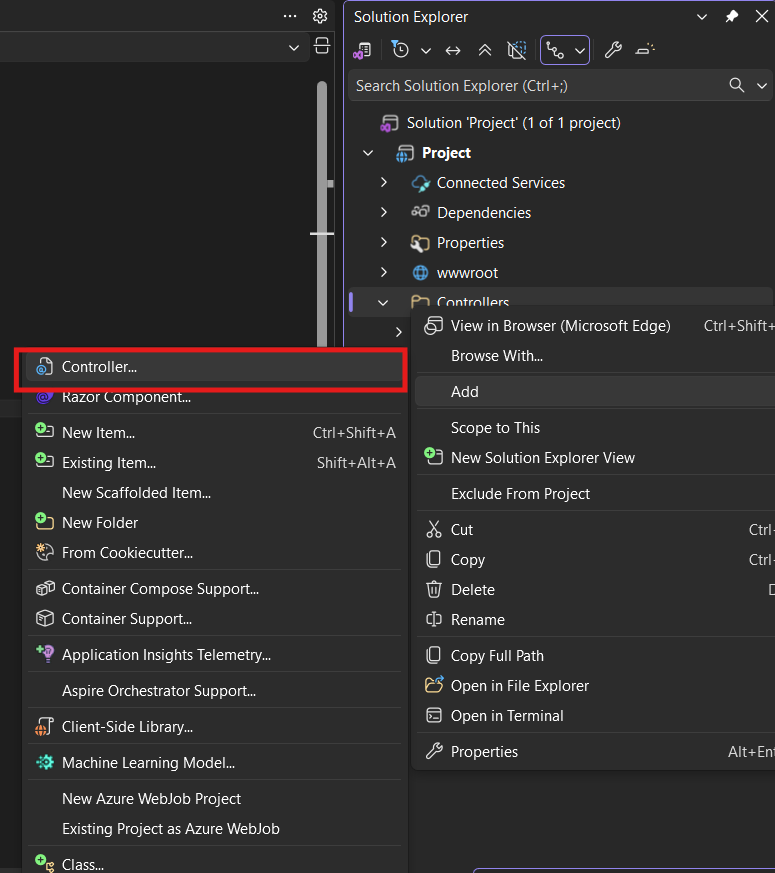
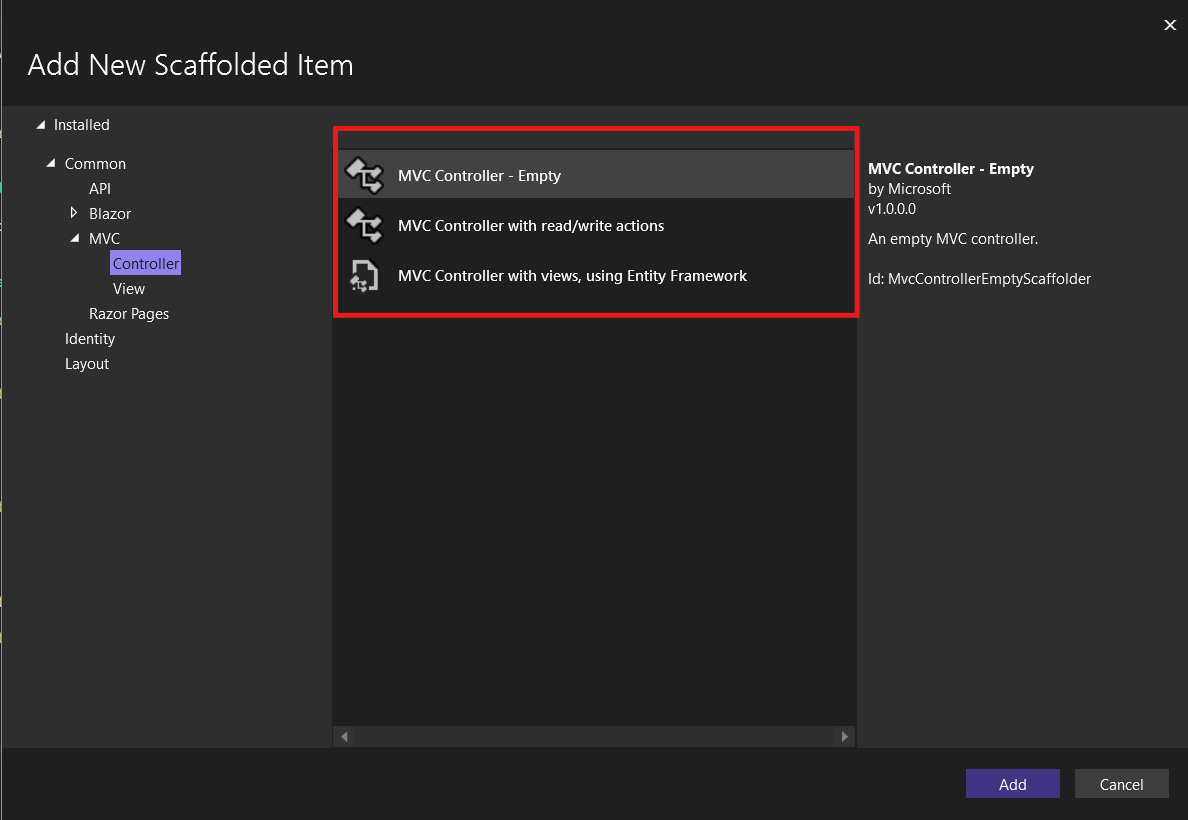
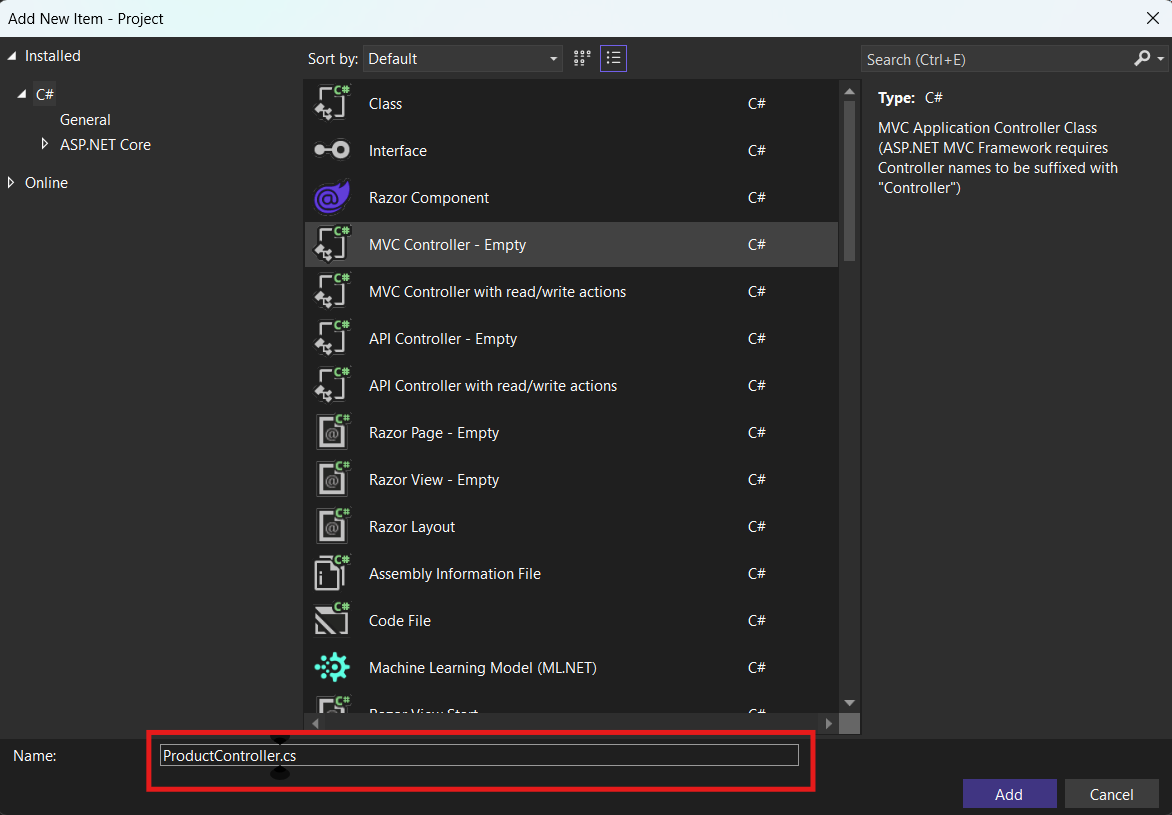
This method ensures that your controller is created with the correct structure and naming conventions, making it easier to integrate with routing and views.
Creating Controller Manually
You can also create a controller manually by adding a class inside the Controllers folder.
using Microsoft.AspNetCore.Mvc;

public class ProductController : Controller
{
    public IActionResult Index()
    {
        return View();
    }
}
This controller contains a single action method called Index.
When a user visits /Product/Index, this method is executed.
Creating Controller Using .NET CLI
If you prefer command-line tools, you can create a controller using the .NET CLI.
dotnet new controller -name OrderControllerThis command generates a new controller file in your project.
This approach is useful when working with Visual Studio Code or terminal-based environments.
Understanding Controller Structure
A typical controller includes:
- Class definition
- Inheritance from Controller base class
- Action methods
public class OrderController : Controller
{
    public IActionResult Index()
    {
        return View();
    }
}
Each method inside the controller is called an action method and is responsible for handling specific requests.
Naming Conventions for Controllers
Controllers must follow specific naming conventions:
- Name must end with Controller
- Example: HomeController, ProductController
This allows ASP.NET Core to map routes automatically.
Adding Multiple Action Methods
A controller can have multiple action methods to handle different routes.
public class ProductController : Controller
{
    public IActionResult Index()
    {
        return View();
    }

    public IActionResult Details()
    {
        return View();
    }
}
Each method handles a different request such as:
- /Product/Index
- /Product/Details
How Controllers Connect to Views
In ASP.NET Core MVC, one of the most important responsibilities of a controller is to return a view that will be rendered in the browser. This connection between controllers and views is handled automatically by the MVC framework using conventions.
When an action method returns View(), ASP.NET Core follows a predefined pattern to locate the corresponding view file.
Basic Example
public class ProductController : Controller
{
    public IActionResult Index()
    {
        return View();
    }
}
In this example, the Index() action method returns View() without specifying any view name.
Now the question is: how does ASP.NET Core know which view to render?
What Happens Internally?
When the View() method is called:
- The framework identifies the current controller and action method
- It constructs the expected view path
- It searches for the corresponding .cshtml file
- If found, it compiles the Razor view
- The generated HTML is sent back to the browser
This entire process happens automatically without requiring manual configuration.
What If the View Is Not Found?
If the expected view file does not exist, ASP.NET Core throws a runtime error.
The error typically looks like:
InvalidOperationException: The view 'Index' was not found.To fix this error, you need to:
- Create the correct view file inside the appropriate folder
- Ensure the file name matches the action method name
Specifying View Name Manually
You can also explicitly specify the view name inside the View() method.
return View("Details");In this case, MVC will look for:
Views Folder → Product Folder→ Details.cshtml
This is useful when you want to return a different view than the action name.
Real-World Example: Product Listing
In real-world applications, controllers are used to handle actual data and business scenarios.
public class ProductController : Controller
{
    public IActionResult List()
    {
        var products = new[]
        {
            new { Id = 1, Name = "Laptop" },
            new { Id = 2, Name = "Mobile" }
        };

        return View(products);
    }
}
In this example:
- The controller prepares product data
- The data is passed to the view
- The view displays the data to the user
This is commonly used in e-commerce websites and dashboards.
Best Practices for Creating Controllers
When building real-world ASP.NET Core MVC applications, following best practices while creating controllers is essential. These practices help keep your code clean, maintainable, and scalable as your application grows.
-
Keep controllers lightweight
Controllers should only handle request processing and response generation. Avoid placing heavy logic inside controllers. Instead, focus on handling user input and returning the appropriate response. Keeping controllers lightweight improves readability and makes them easier to maintain.
-
Use services for business logic
Business logic should not be written inside controllers. Instead, create separate service classes and call them from controllers. This approach follows the separation of concerns principle and makes your application easier to test and extend.
-
Follow naming conventions
Always name your controllers with the Controller suffix, such as ProductController or OrderController. This ensures that ASP.NET Core can correctly identify and route requests to your controllers without additional configuration.
-
Use dependency injection
Instead of creating objects manually inside controllers, use dependency injection to provide required services. This makes your code more flexible, testable, and aligned with modern ASP.NET Core practices.
-
Return correct result types
Controllers should return appropriate result types based on the scenario. For example, use View() to return HTML, Json() for API responses, and File() for downloads. Returning the correct type ensures proper behavior and better user experience.
By following these best practices, you can build applications that are easier to manage, easier to scale, and aligned with industry standards.
Common Mistakes Beginners Make
- Not inheriting from Controller class
- Incorrect naming
- Missing view files
- Too much logic inside controllers
- Ignoring routing rules
Avoiding these mistakes will help you write better code.
Summary
Creating controllers in ASP.NET Core MVC is a fundamental skill for building web applications.
You can create controllers using Visual Studio, manually, or through the CLI.
Controllers define application behavior and connect user requests with views and data.
By following best practices and understanding real-world usage, you can build scalable and maintainable MVC applications.